
Signing
You can have a document signed electronically by a client or a colleague. The signed document arrives in the dataroom as a new version, with an evidence page added.
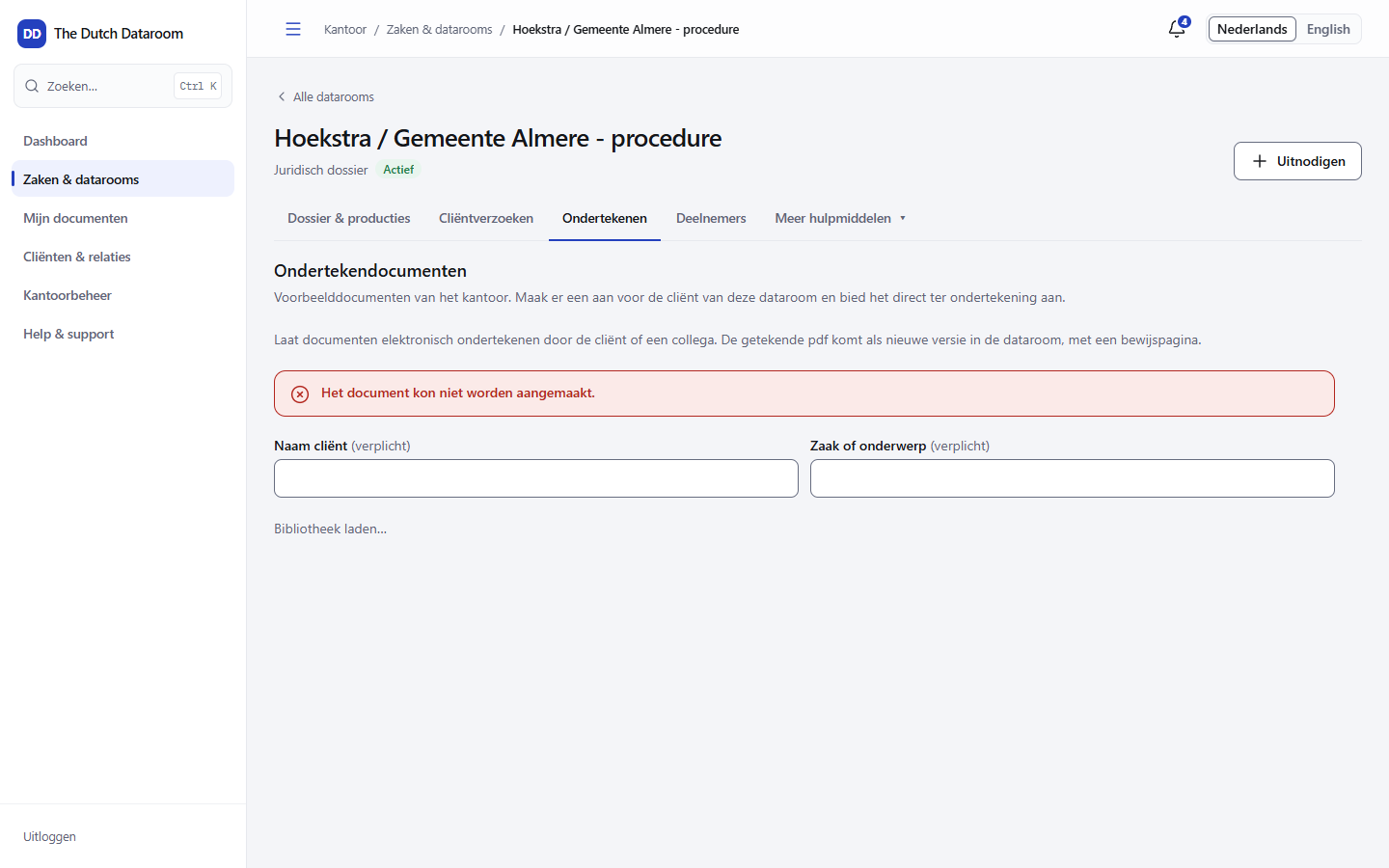
Offering a document
Section titled “Offering a document”- Open the dataroom and go to Signing.
- Choose a document from the library of the office, or open an existing document and choose Offer for signing.
- Enter the name of the client and the matter or subject.
- Check the signatories and the order.
- Choose Create and offer.
The signatory receives an e-mail. In the demo environment the system uses an ordinary electronic signature (SES); in an online environment an EU signing service is added.
Levels of signing
Section titled “Levels of signing”| Level | For what |
|---|---|
| SES — ordinary electronic signature | Engagement confirmation, service document |
| AES — advanced electronic signature | Settlement agreement, advisory report; with e-mail and SMS code |
| QES — qualified electronic signature | Equivalent to a handwritten signature; requires a qualified service |
QES is not available in every environment. If the level is not listed, it is not configured for your environment — do not request it if you need it, but use AES or a paper route.
Following the status
Section titled “Following the status”Per request you see:
- Waiting for signature — sent, not signed yet.
- Signed — all signatories have signed.
- Withdrawn — you have withdrawn the request.
- Expired — the validity has passed.
- Failed — something went wrong when offering.
Per signatory you see Not signed yet, Signed or Refused.
How the signatory sees it
Section titled “How the signatory sees it”The signatory opens the link, proves his e-mail address with a code and — with AES — his telephone with an SMS code. After that he sees the document with the places where he has to sign. On a phone the signing box is below the document; on a desktop beside it.
After signing
Section titled “After signing”The signed document arrives in the dataroom as a new version. The previous version remains, so you can always show what exactly was signed. The evidence page contains the names, the times and the verification used.
Withdrawing
Section titled “Withdrawing”Choose Withdraw in the signature panel of the document. The signatory can then no longer sign. If the document has already been signed, you can no longer withdraw the request; create a new version and offer that again.