
Search
Search works across all datarooms you have access to. You can search on (part of) a file name, on a word in the content of a document and on messages and requests.
Quick search
Section titled “Quick search”- Press
Ctrl+K(⌘+Kon a Mac), or click the search bar. - Type at least two characters.
- Choose with the arrow keys and open with Enter, or choose All results for the complete list.
Quick search searches in names of folders and documents, also on part of a word and with a small typo. If you want to search the content, use the full search page.
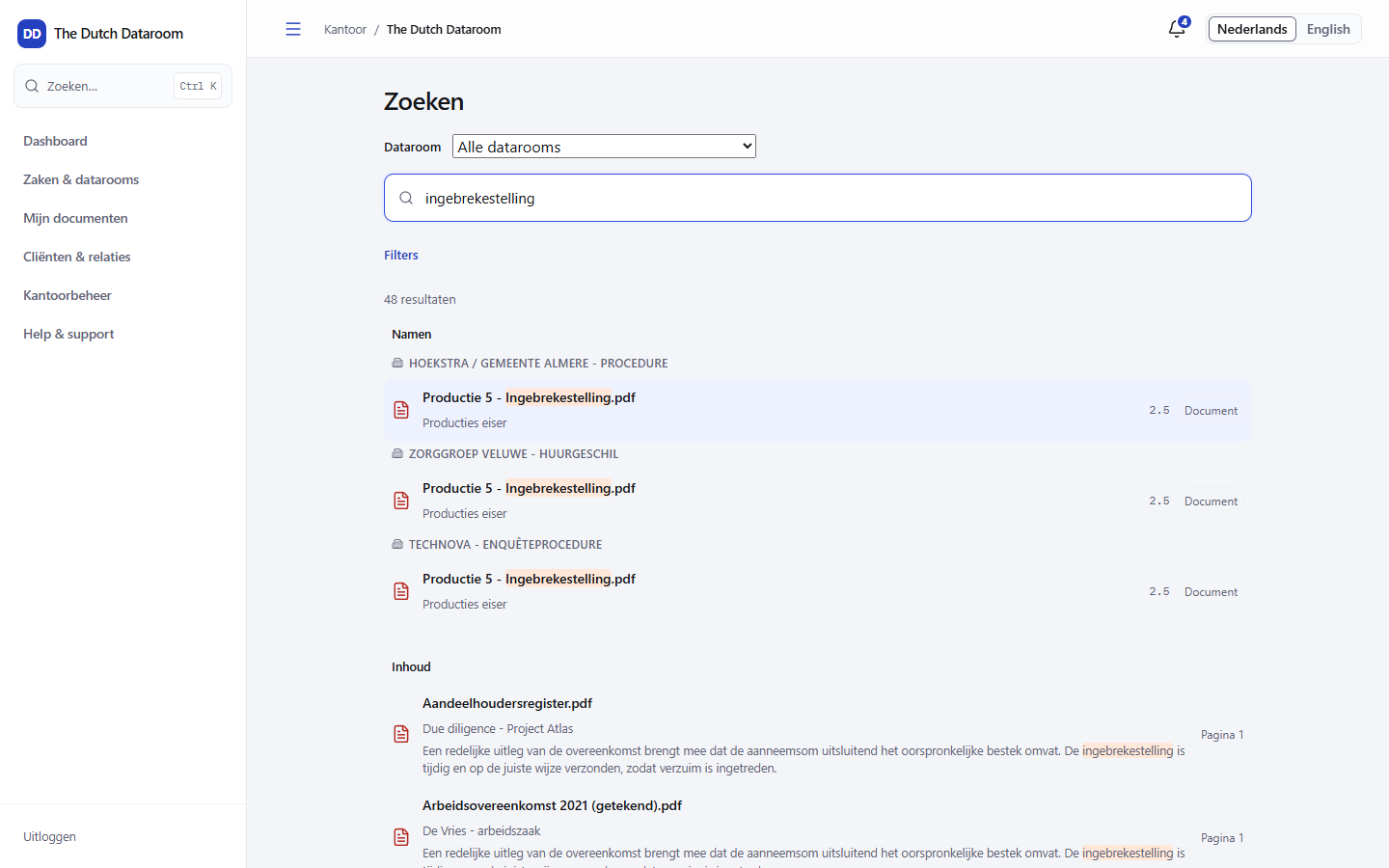
The search page
Section titled “The search page”On the search page you first choose what you search in:
- Everything — documents, messages and requests.
- Documents — file name, content and details.
- Messages — the messages in datarooms you have access to.
- Requests — document requests and their items.
You can also tick My matters only and filter on:
| Filter | What it is for |
|---|---|
| Dataroom | Limit to one dataroom |
| Status | Available, uploading, scanning, rejected or failed |
| Uploaded by | A specific uploader |
| Changed from / to | A period |
Above the results it says how many matches there are, in how many datarooms, and how long the search took.
What you do and do not find
Section titled “What you do and do not find”- Content — text from PDFs, Word documents and scanned documents is recognised (OCR) and made searchable. A document that has just been uploaded is only searchable once processing is finished: the status must be Ready for use.
- Restricted content — you only find what you are allowed to see. In the search results a guest sees only the folders for which they have permission, even if the same term appears elsewhere in the dataroom.
- Files that cannot be converted — the content of, for example, an old CAD drawing cannot be read; the file name can still be found. Such files have the status Ready with limitations.
Searching within a dataroom
Section titled “Searching within a dataroom”In a dataroom you search with the search field above the index. By default that searches the dataroom you are in; with the scope choice you extend it to all datarooms. Use the Clear filters button to empty all facets at once.