
The client portal
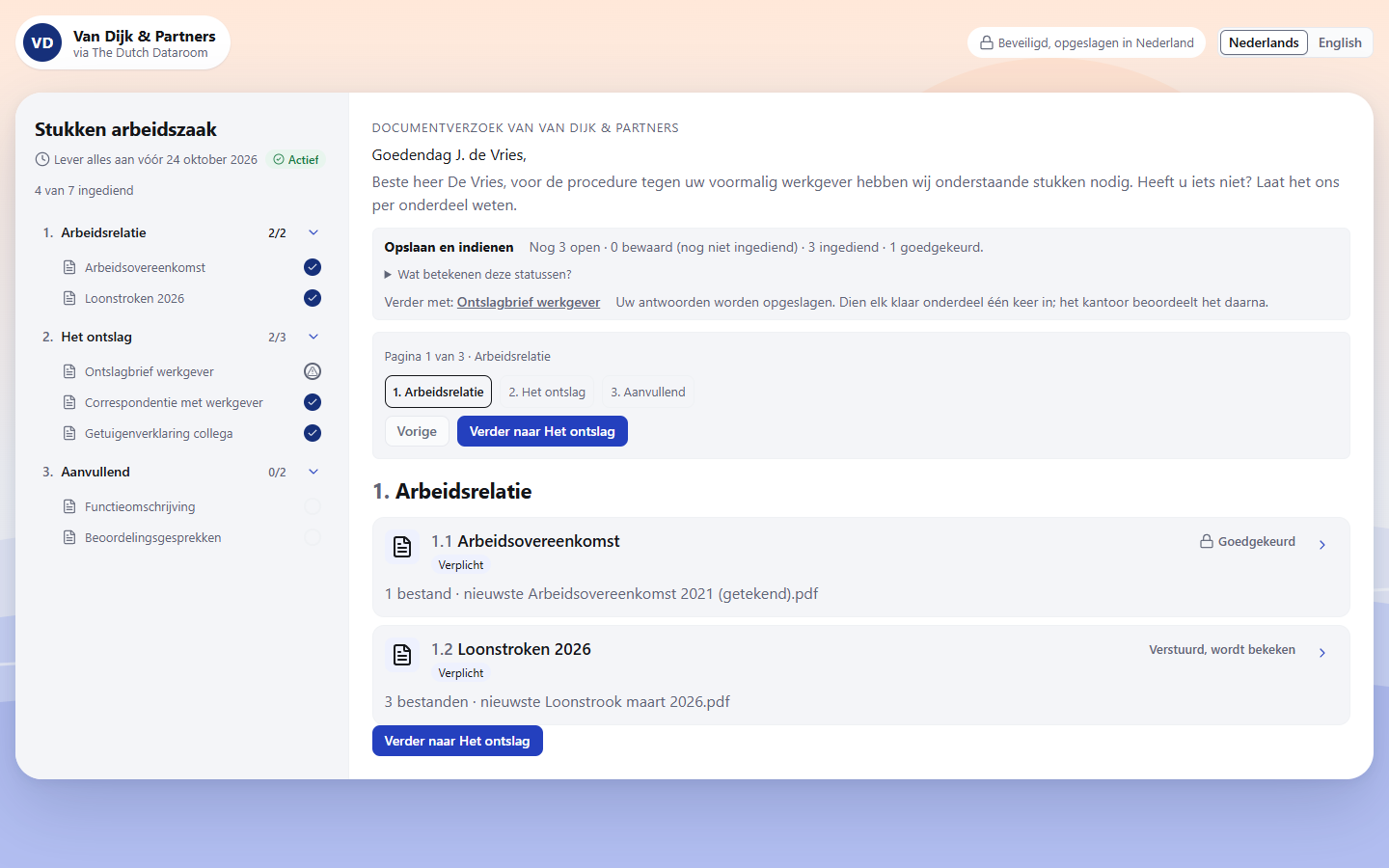
The client portal is the portal your client opens through the link in your email. There they see what you share with them and what you need from them — and nothing else.
Logging in
Section titled “Logging in”- The client opens the link from the email.
- They choose Send me a code; the code arrives at the email address the link was sent to.
- They enter the code and land in their portal.
- To view shared documents a second code follows by SMS, if the office has set up secure viewing.
The link keeps working: the client does not have to request a new link every time. The codes are limited in number and validity — do not ask the client to request ten codes just before an appointment.
What the client sees
Section titled “What the client sees”| Part | Content |
|---|---|
| What we need from you | The checklist from the document request, with the status per item |
| Shared with you | Documents you share with them, in the secured viewer with their name as watermark |
| Messages | The messages exchanged with the office |
| Submitted | What they have already uploaded, with the status per item |
At the top is a summary: 3 items still open or You have submitted everything. That way the client knows at once whether anything is still expected of them.
Submitting
Section titled “Submitting”- Open an item from the checklist.
- Choose the file or drag it into the box.
- Check it and choose Submit.
The file goes to the office for review. The client sees Waiting for review until it has been approved. If something is rejected, they see the reason and can submit again.
On a phone
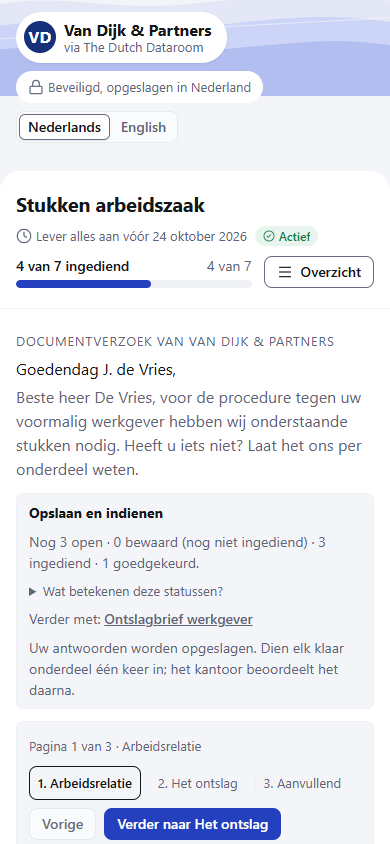
Section titled “On a phone”The client portal works on a phone in a single column. The table of contents becomes a collapsible overview, so the form stays readable.
What the client cannot do
Section titled “What the client cannot do”- See documents that have not been shared with them.
- Approve their own submissions.
- Change the numbering or the folder structure.
- Get in through an expired or withdrawn link: the page then reports This link no longer works, and you request a new link.
If the client cannot receive an SMS code
Section titled “If the client cannot receive an SMS code”Without a mobile number the client can still log in and submit documents, but cannot view shared documents. Add the number to the participant in the dataroom, or turn off secure viewing if that is not needed for this client.