
Dataroom settings
The settings of a dataroom determine how the index is numbered, what guests must accept, whether downloads are allowed and what happens when the matter ends. You find them under the Settings tab.
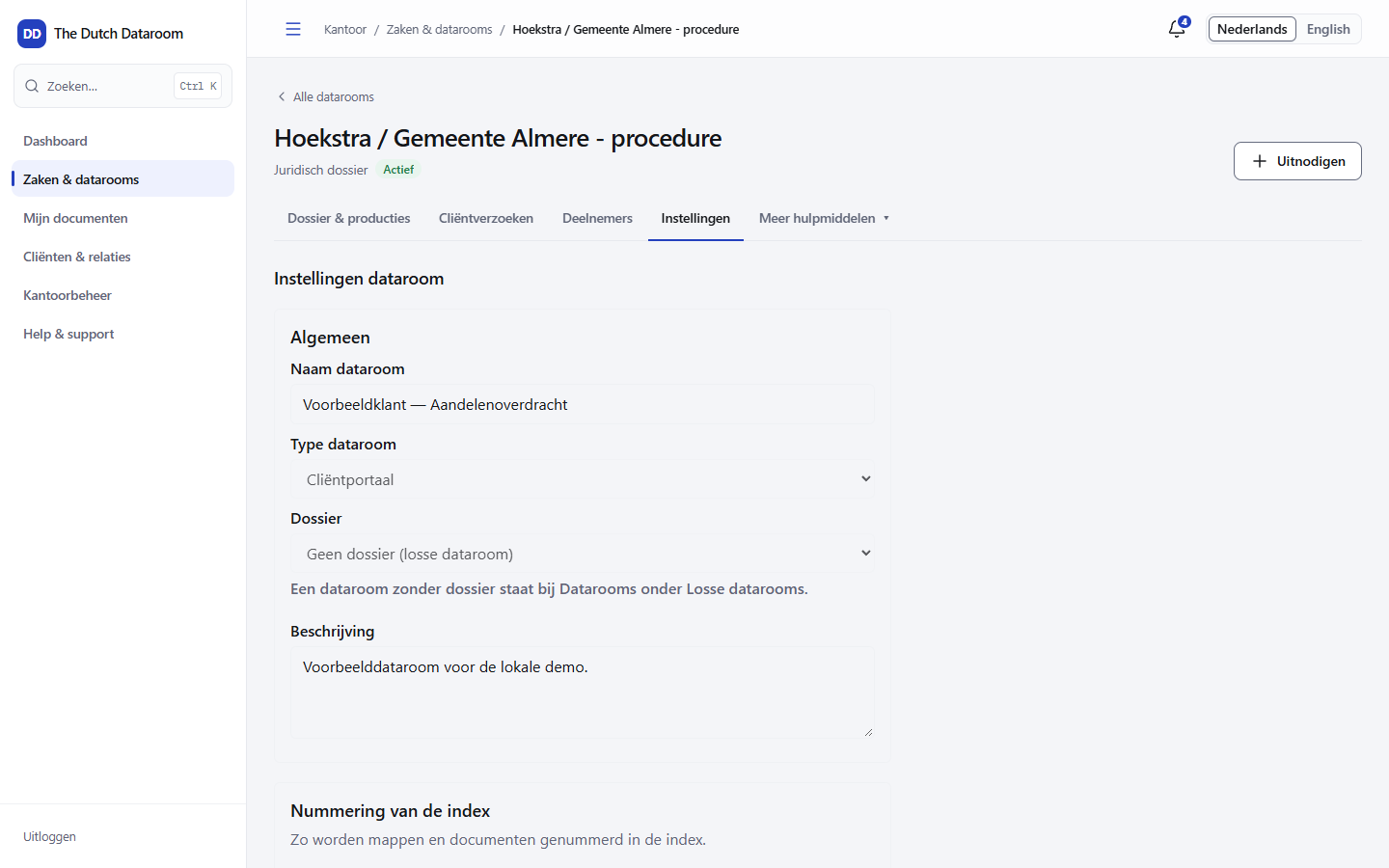
General
Section titled “General”- Name — the name participants see in their overview and in emails.
- Type — client portal or proceedings.
- Description — free text, visible only to office users.
- Matter — link the dataroom to a matter as yet, or detach it.
Numbering
Section titled “Numbering”Choose Numeric (1, 2, 3), Decimal (1.1, 1.2) or No numbering. You also determine whether numbers are visible in the index and whether placeholders for ongoing uploads appear.
The number style applies to the whole dataroom. If you change it when documents have already been shared, the reference in earlier emails and letters changes with it — check that before you switch.
You can require that a guest accepts the terms of the dataroom on their first visit. The system records which version someone has accepted and when. Without acceptance the guest gets no further than the welcome screen.
Viewer and watermark
Section titled “Viewer and watermark”| Setting | Effect |
|---|---|
| Show watermark with the viewer’s name and time | Every page viewed gets a watermark with name, email address, time and a forensic marker |
| Allow download of originals | Without this option a guest can only view, not download |
| Offer downloads as PDF with watermark | The guest receives a PDF with a watermark instead of the original |
| Group members may see each other’s names | Determines whether participants in the same group see each other in the participants list |
These settings are defaults. Per group the permissions matrix can be stricter; the strictest setting always wins.
Access and scheduling
Section titled “Access and scheduling”At the top of the settings you see who has access and until when. You can:
- schedule access from a date, for example only after a hearing day;
- let access expire on a date;
- withdraw access per person or group.
Freezing
Section titled “Freezing”Freeze dataroom makes the dataroom read-only: participants can view documents but can no longer change, upload or delete anything. Use this when the documents are final, for example just before a hearing. With Reactivate you make it editable again.
Archiving and retention
Section titled “Archiving and retention”When the matter ends, you close the dataroom. The dataroom is then locked and the retention period starts running. During the retention period:
- everything remains readable for those entitled to it;
- nothing can be destroyed;
- the audit trail remains intact.
After the end of the retention period an administrator can proceed to destruction. If a legal hold is active, destruction is blocked — also after the end of the period, until the legal hold has been lifted.
Permissions on the settings
Section titled “Permissions on the settings”Only the dataroom administrator and the office administrator can change settings. Other participants do not see the settings as a tab. A guest never sees them.