
Getting to know the screen
Every screen has the same layout: the menu on the left, search and notifications at the top, and the task you are working on in the middle. The dataroom itself also has its own tabs.
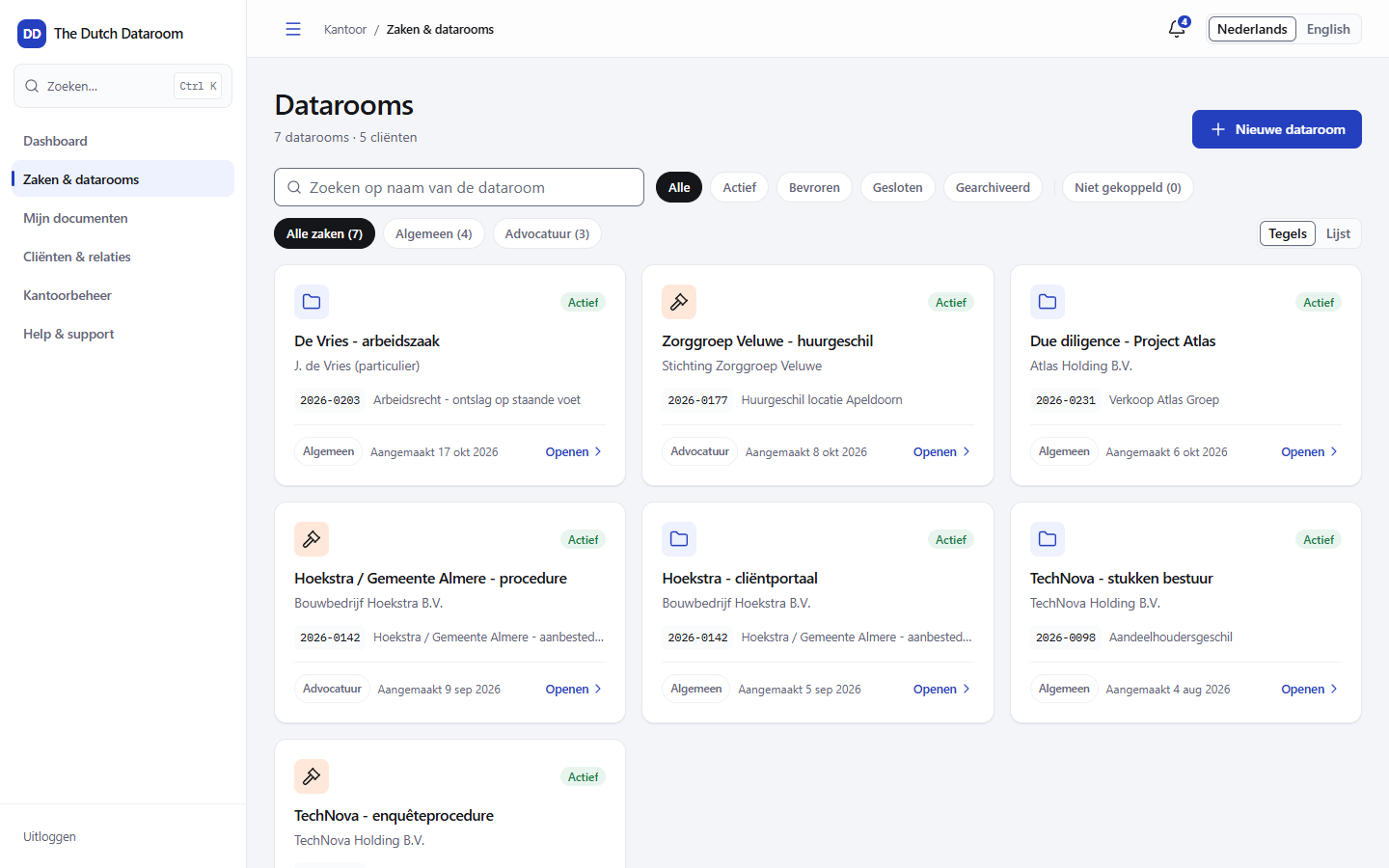
The menu
Section titled “The menu”| Menu item | What it is for |
|---|---|
| Dashboard | What needs attention today: open actions, recent activity, most viewed documents |
| Matters & datarooms | All datarooms, with search and filtering by status |
| Clients & relations | Clients, matters and their datarooms in one place |
| My documents | Documents assigned to you or that you recently opened |
| Search | Search through all datarooms you have access to |
| Notifications | New uploads, requests, messages and deadlines |
| Help & support | The help centre, with explanations per task and a tour |
| Office administration | Users, branding, storage, retention and integrations (administrators) |
| My account | Language, display and keyboard shortcuts |
Administrators see Office administration; ordinary office users do not. A guest sees a smaller set: the datarooms and folders they have been invited to, without office administration or the general search function.
Search
Section titled “Search”The search bar at the top searches all datarooms you have access to in one go: by file name, by
document content and by clients and matters. Use Ctrl+K (⌘+K) to open it from your keyboard.
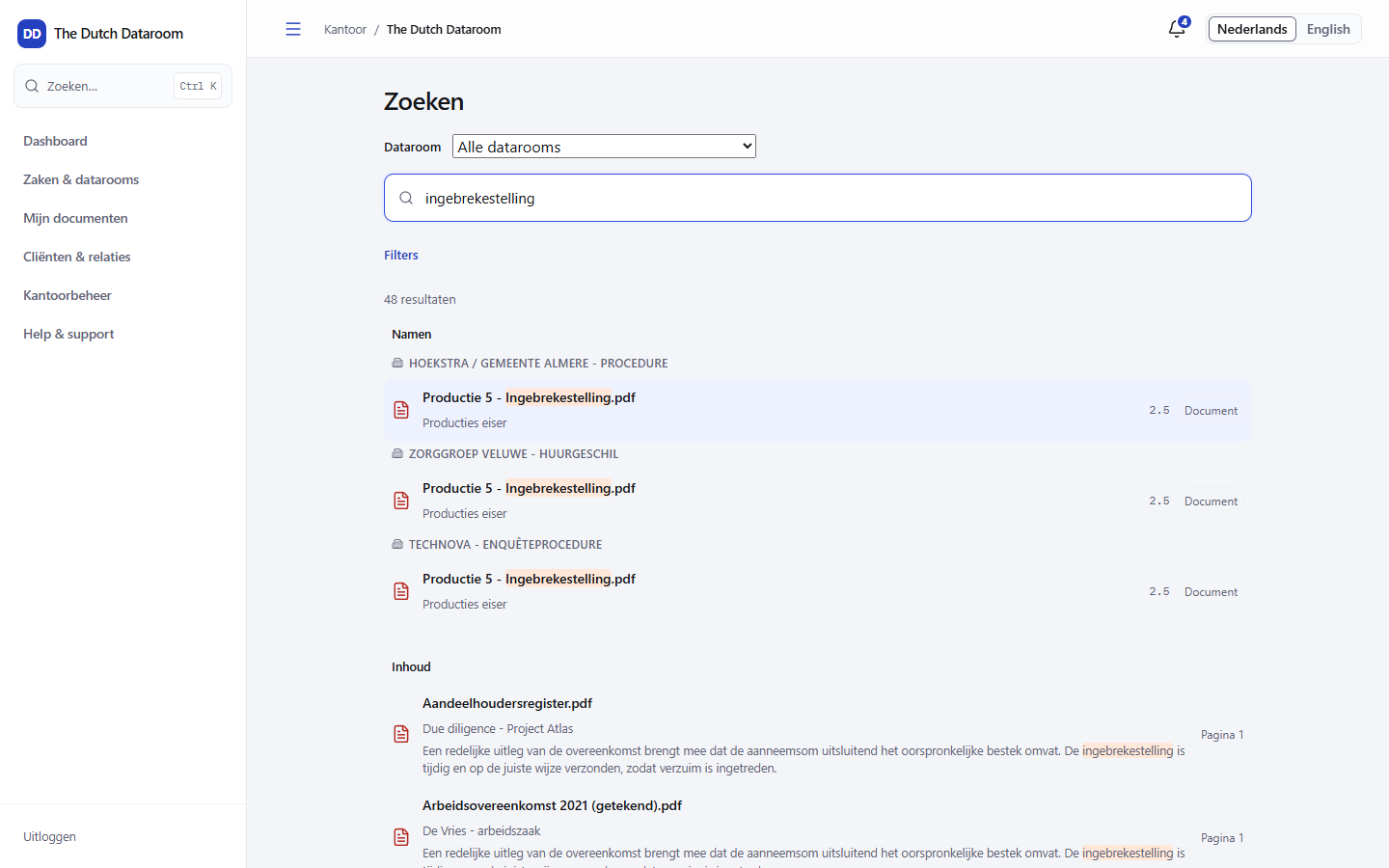
More about searching and filters: Search.
Notifications
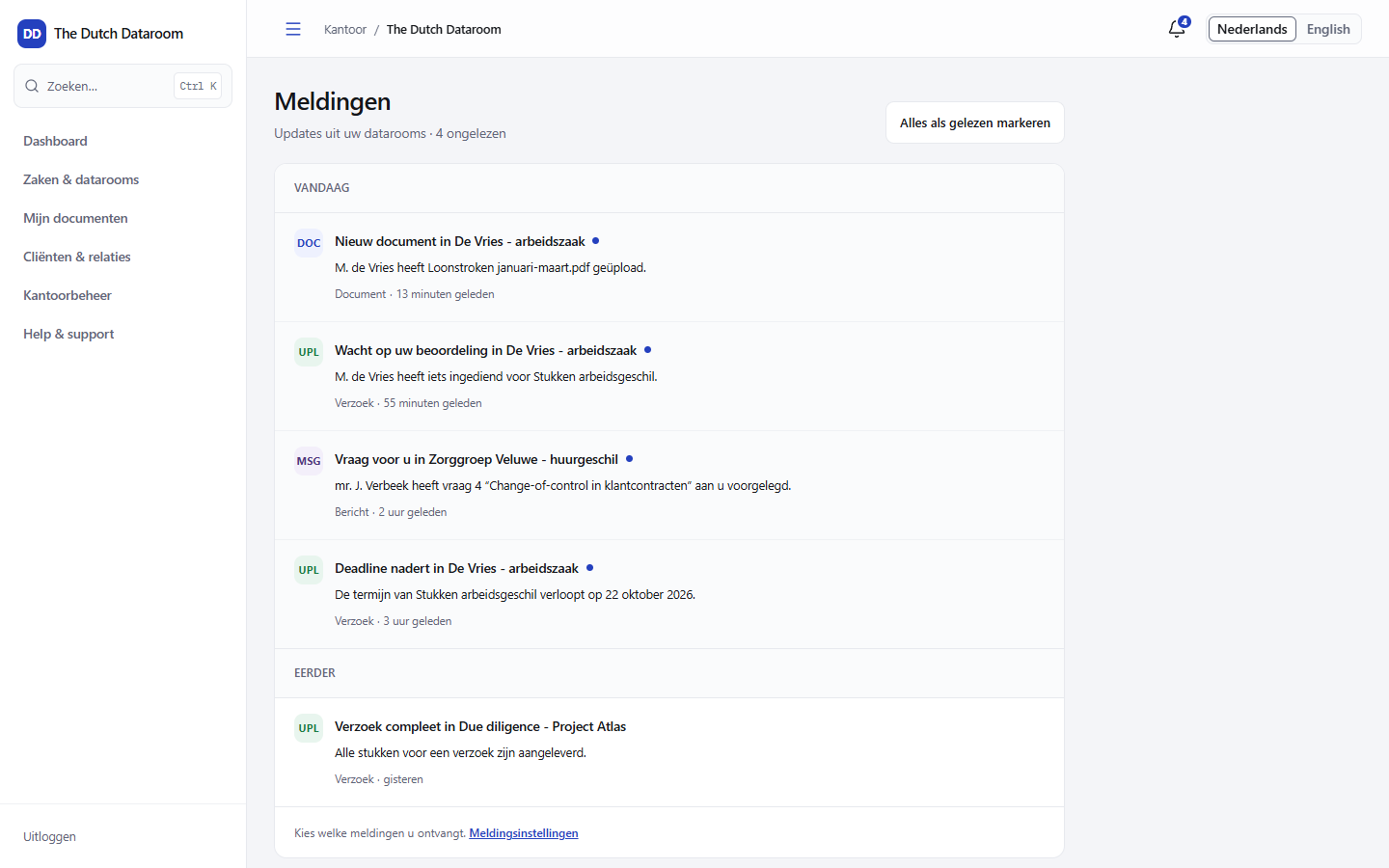
Section titled “Notifications”The bell at the top right shows the number of unread notifications. Click it for the list, or open Notifications in the menu. For each type of notification you set whether you want to receive it immediately, daily or only in the application; you do that at the bottom of the notifications page.
Help centre
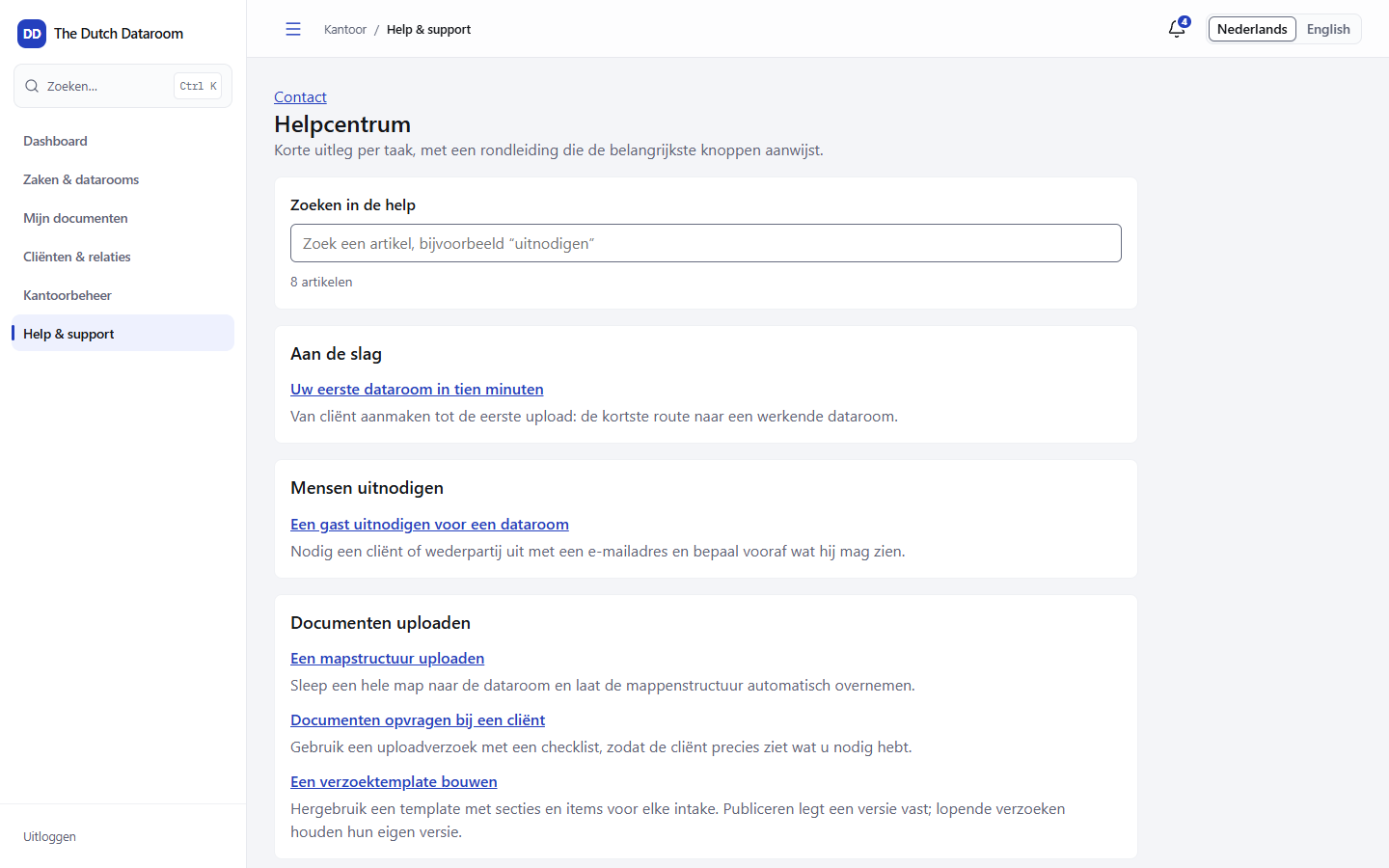
Section titled “Help centre”Help & support opens the help centre with short articles per task, a search field and tours that point out the main buttons. The same explanations, more extensive and with screenshots, are in this manual.
Language, display and keyboard shortcuts
Section titled “Language, display and keyboard shortcuts”Under My account you choose Dutch or English, set the display and see the keyboard shortcuts. The language choice applies to your account; other users in the same office can see a different language.
Inside a dataroom
Section titled “Inside a dataroom”A dataroom has its own tabs. Which ones you see depends on your permissions and on the type of dataroom:
| Tab | What it is for |
|---|---|
| Overview | Summary, participants and the latest activity |
| Documents | The index with folders, numbers and uploads |
| Exhibits | Numbered exhibit list and export for the court |
| Document requests | Requests to clients or counterparties |
| Messages | Messages with participants, per subject |
| Participants | Who has access, with status and last sign-in |
| Permissions | The permissions matrix per group |
| Q&A | Questions and answers (if the dataroom supports it) |
| Insight | Reading time and activity per group |
| Signing | Signing requests and their status |
| Audit trail | The complete log of the dataroom |
| Settings | Access, watermark, retention, freezing and archiving |