
Uploading documents
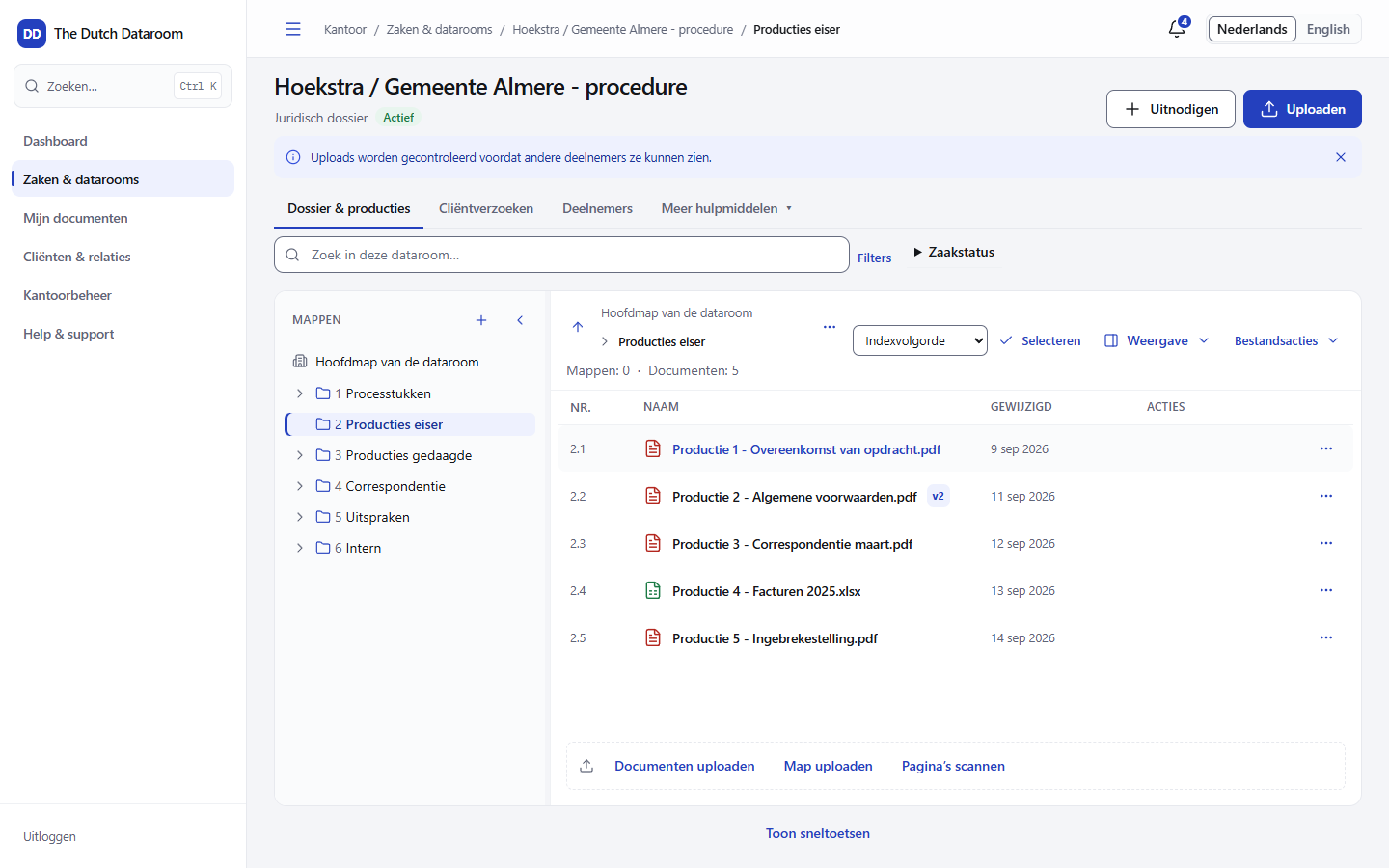
You upload directly into the index. Drag files or an entire folder onto the upload area, or select them with the Upload documents button. The folder structure of your computer is copied over.
Uploading
Section titled “Uploading”- Open the folder where the files should go. Uploads always go to the folder you have opened.
- Choose Upload documents or Upload folder, or drag the files into the window.
- The queue appears at the bottom right. For each file you see the progress and the status.
- Wait until the status is Ready to use. Only then is the document fully processed, searchable and available for others to open.
You can keep working while the upload runs. The queue stays until you hide it.
The queue
Section titled “The queue”| Status | Meaning |
|---|---|
| Queued | The file is waiting for a free upload slot |
| Uploading | The bytes are being sent to the server |
| Uploaded | The file has arrived; processing starts |
| Being checked | The file is scanned for viruses and file type |
| Processing | Conversion, text recognition and search index |
| Ready to use | Everything is done |
| Ready with limitations | The document is usable, but for example not searchable |
| Upload failed / Processing failed | Something went wrong; you can try again |
| File rejected | The file type or the content is not allowed |
Buttons in the queue: Pause, Resume, Try again, Check status again, Restart processing and Open document.
Large files
Section titled “Large files”- The limit per file is 5 GB.
- A large upload is sent in parts and resumes automatically if the connection drops. You do not have to start over.
- Do not close the window while the queue is still running. If you navigate away, the upload continues as long as the page stays open; after that it resumes on your next visit.
Special cases
Section titled “Special cases”A folder with many subfolders. Empty folders are created too, so the structure is correct. If a folder cannot be read in full, the system reports this and adds nothing from that selection — better than a half-filled folder.
Replacing a file. If you upload a file with the same name in the same folder, the system creates a new version. The original is kept. See Versions.
Scanning. If you receive paper documents, choose Scan pages and then Scan pages to PDF; the scan arrives in the index as one PDF.
Filling an expected document. Drag the file onto the row of the expected document. The title stays the same, the number stays the same and the status changes from Expected to Available.
What happens to your file
Section titled “What happens to your file”After the upload, each file is checked and processed. Text and page images are prepared for the viewer, so a guest never has to download the original to be able to read something. The original stays stored encrypted and is only delivered when there is a right to it.