
Signing in
You sign in with the email address the office has registered for you, your password and a code from your authenticator app. There is no separate account per dataroom: one account gives access to all datarooms for which you have permissions.
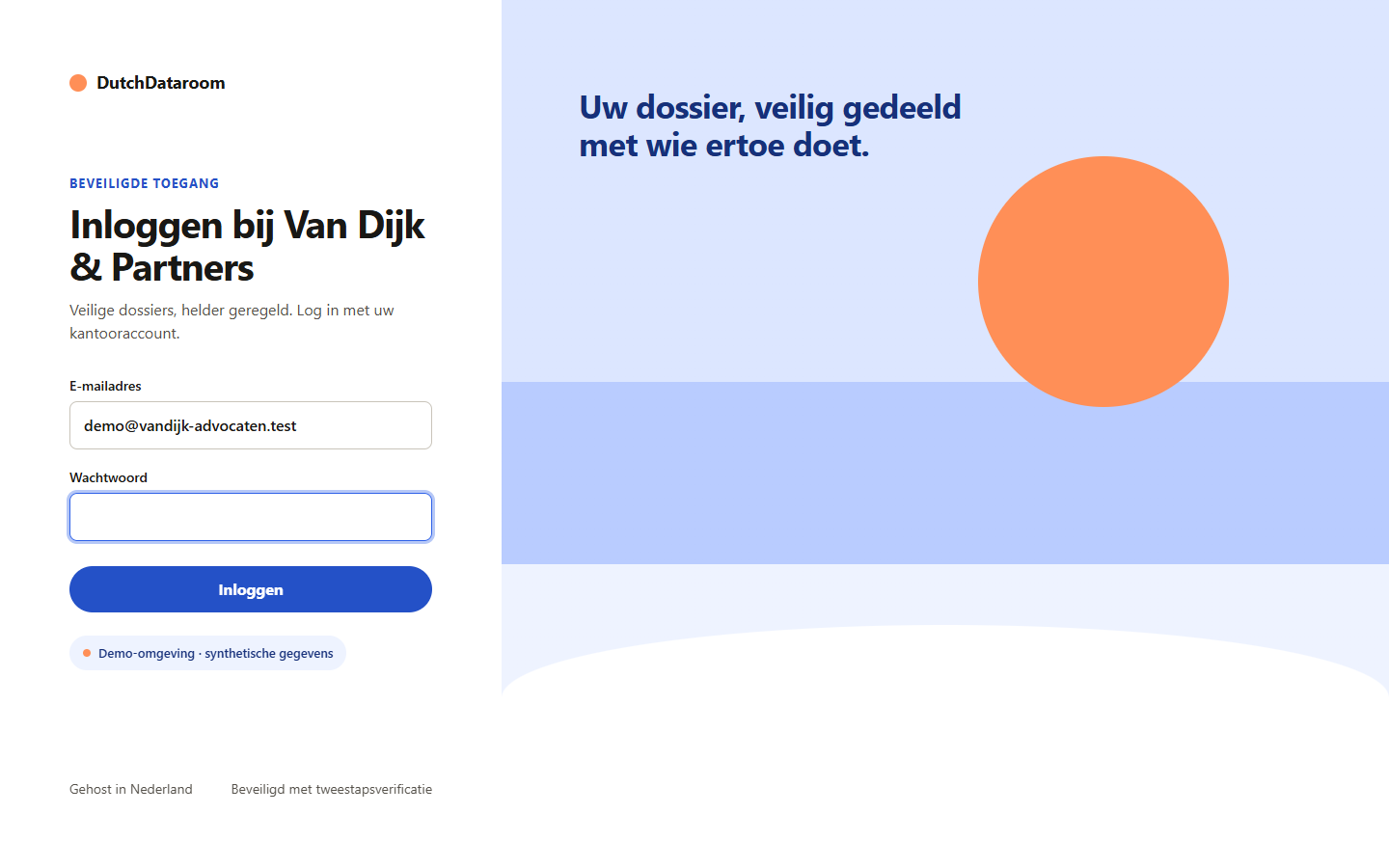
Step by step
Section titled “Step by step”- Open your office’s address, for example
https://dataroom.jouw-kantoor.nl. - Enter your email address and password.
- Enter the six digits from your authenticator app. The code changes every 30 seconds.
- Choose Sign in. You arrive at your dashboard.
The first time you sign in, the system asks you to set a password and a second factor. Keep the recovery details you receive then in a safe place: without a second factor the office can only issue your access again, not restore it.
Two-factor authentication
Section titled “Two-factor authentication”The office can set the policy for the second factor. If it is on, signing in without a code is not possible. If you use a passkey (for example Touch ID or Windows Hello), it replaces the numeric code.
Forgot password
Section titled “Forgot password”Choose Forgot password on the sign-in screen. You receive an email with a link that is valid for a limited time. After setting a new password, the system asks for your second factor again.
Language and signing out
Section titled “Language and signing out”You switch the language (Dutch or English) with the language button in the top bar; that choice applies to your account, not to the whole office. Sign out is at the bottom of the menu. Always sign out on a shared computer — otherwise a session stays active until it expires.
If signing in does not work
Section titled “If signing in does not work”| What you see | What it means | What you do |
|---|---|---|
| “Incorrect email address or password” | The combination is not correct | Check the email address; use Forgot password |
| The code keeps being rejected | The phone’s clock is not in sync | Set the time to automatic and try the next code |
| “Your account is blocked” | Too many attempts or access withdrawn | Contact the office administrator |
| You keep returning to the sign-in screen | The browser blocks cookies | Allow cookies for this address, or use a different window |
These messages deliberately contain no details about the account: that way nobody can use the sign-in screen to find out whether an email address exists.