
Your first dataroom in ten minutes
You have an account and an empty office. In ten minutes there is a dataroom with content and the first colleague is invited. You have not yet set permissions for outsiders after this — you do that deliberately in a separate step.
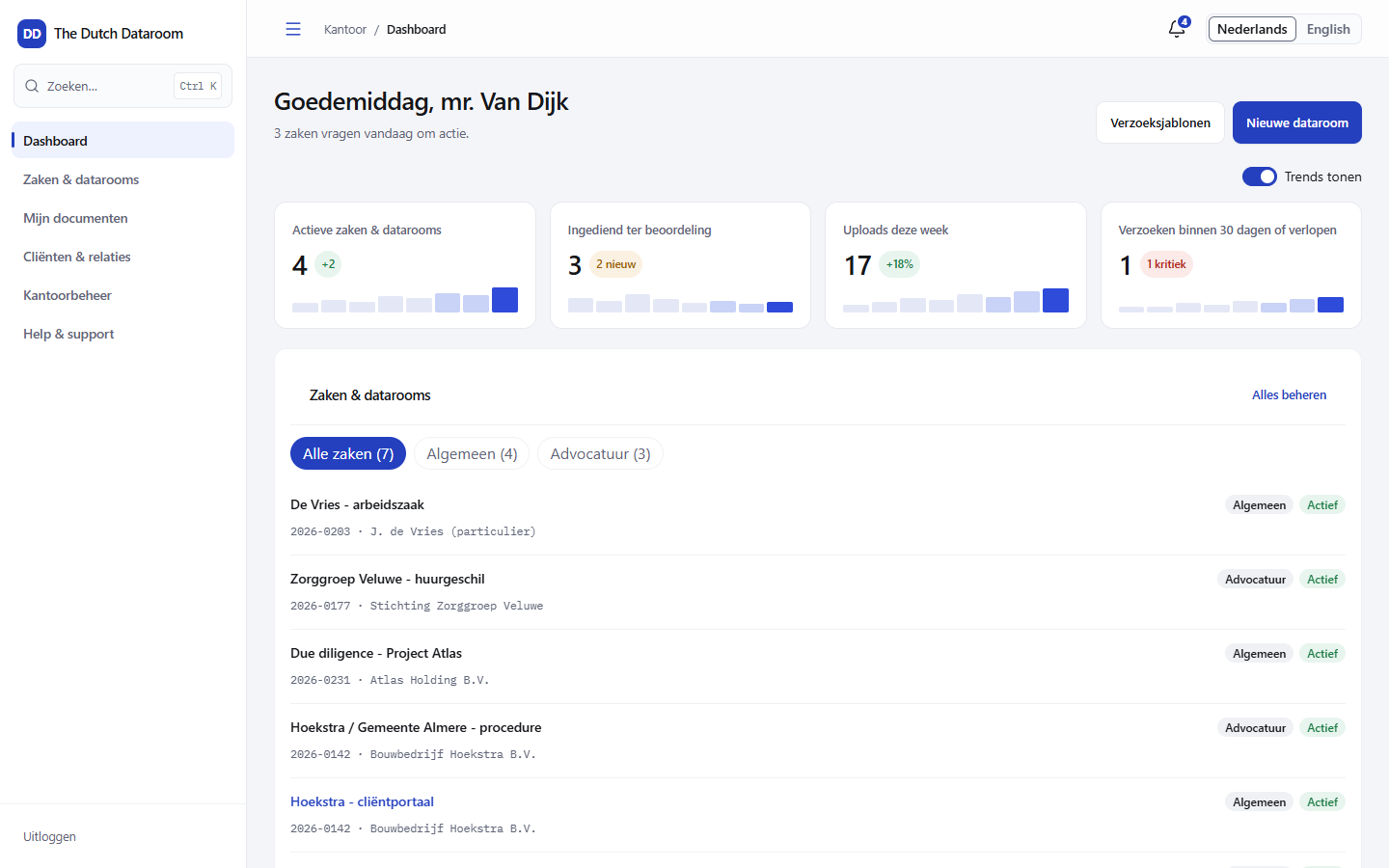
1. Open the dataroom overview
Section titled “1. Open the dataroom overview”Choose Matters & datarooms in the menu on the left. You see all datarooms for which you have permissions, with the number of documents, participants and open requests per card.
2. Create the dataroom
Section titled “2. Create the dataroom”- Choose New dataroom at the top right.
- Enter a name the client will also recognise, for example
De Vries subdistrict court case. - Choose a starting point: Own structure for an empty dataroom, or a starting point with suggested folders and questionnaires. Under What do you want to do? it says what the starting point is intended for (collect, share or organise).
- Optional: tick Link to a client or matter. A dataroom without a link appears under Not linked; you can still do this later in the settings.
- Choose Create dataroom and then Open the new dataroom.
The starting point is a suggestion, not a straitjacket: you can rename, move and delete folders. What you choose mainly determines which folders and expected documents you are presented with.
3. Add content
Section titled “3. Add content”- Open the dataroom and go to the Documents tab (in a legal edition this is called Matter & exhibits).
- Drag a folder with files into the upload area, or choose Upload documents.
- The folder structure is adopted and every file gets a number in the index.
- Wait until the status of each file is Ready for use. With a large file you will see the steps Check, Conversion, Text recognition and Search index go by.
More about uploading, resuming and failed files: Uploading documents.
4. Invite a colleague
Section titled “4. Invite a colleague”- In the dataroom, choose Invite, or open the Participants tab.
- Enter your colleague’s email address and choose the role that suits their task.
- Confirm. Your colleague receives an email with a link; access applies from the moment they sign in.
5. Check what you have
Section titled “5. Check what you have”- Documents — the index with numbers, statuses and the New expected document button.
- Participants — who has access, with status and last sign-in.
- Permissions — the matrix with which you determine per group who may do what.
- Audit trail — what has happened so far.
If it does not work
Section titled “If it does not work”| Situation | Cause | Solution |
|---|---|---|
| “The dataroom could not be created” | Temporary error or name already in use | Try again; the wizard remembers your choices |
| The upload stays at 0% | File larger than the 5 GB limit | Split the file or use a smaller original |
| A colleague cannot see the dataroom | Invitation not yet accepted, or no permission | Check the status under Participants |