
Creating a dataroom
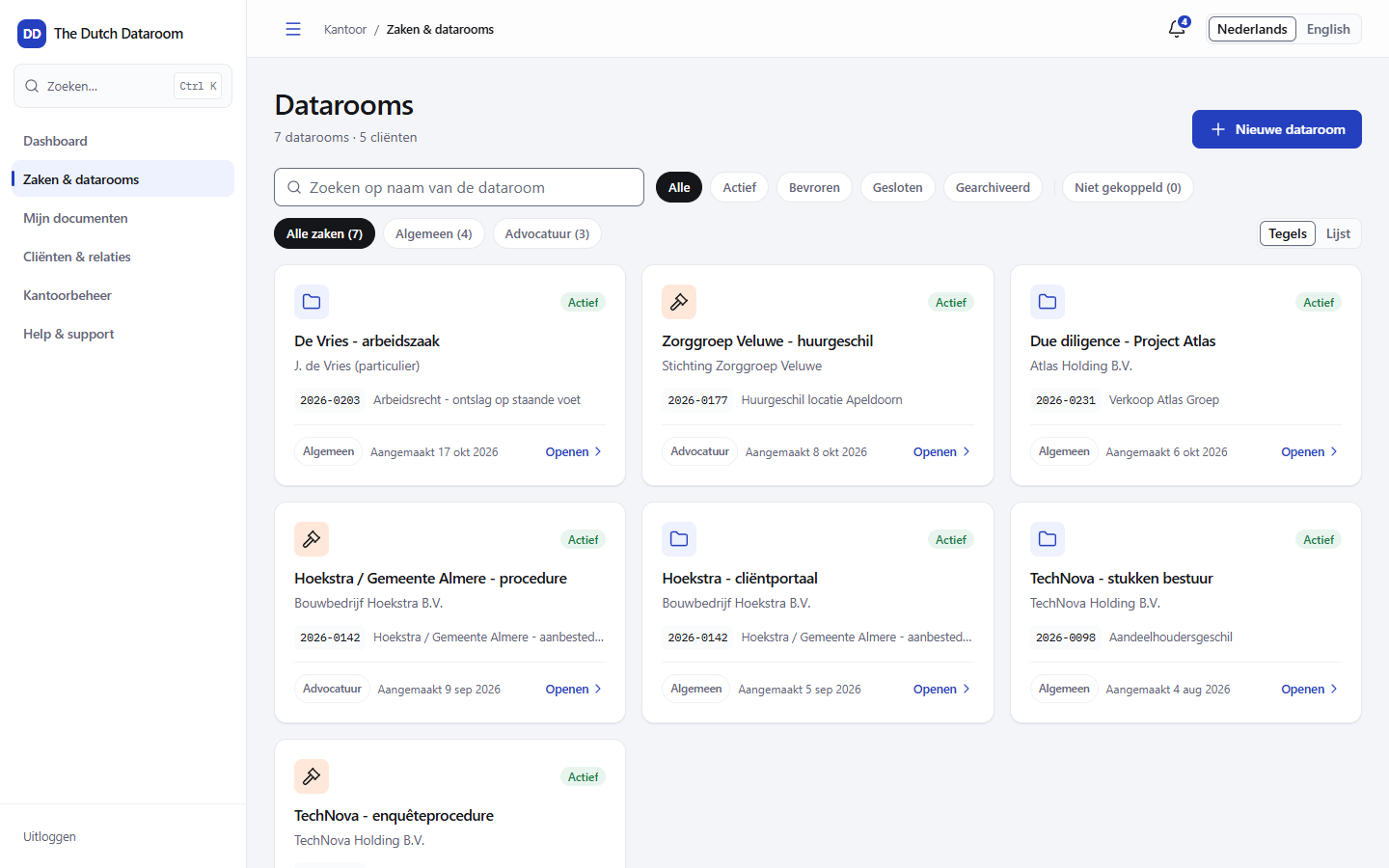
A dataroom is the folder with documents that you share with others. You can create one separately and link it to a client or matter later, or work from a matter straight away.
Step by step
Section titled “Step by step”- Open Matters & datarooms and choose New dataroom.
- Enter the name. Use the name the client uses too; it will appear in every email.
- Optionally choose a client and a matter. If you leave them empty, the dataroom appears under Not linked and you can correct that later in the settings.
- Choose a starting point under What do you want to do?:
- Collect — an index with expected documents and a questionnaire, intended to receive documents from the client.
- Share — a simple, numbered index to give documents to a counterparty.
- Organise — a matter structure without a questionnaire, for internal use.
- Own structure — start completely empty.
- Check the preview: you see which folders and forms you get.
- Choose Create dataroom.
You receive a confirmation with the Open the new dataroom button. The dataroom is immediately usable; uploads and invitations can start right away.
What you choose, and what you can still change later
Section titled “What you choose, and what you can still change later”| Part | Fixed after creation? | Change via |
|---|---|---|
| Name | No | Settings → General |
| Client and matter | No | Settings → General |
| Folder structure | No | Index: rename, move, add |
| Starting point / template | Yes, as a starting point | Adding another starting point is not possible; you continue building in the index |
| Dataroom type | No, but limited | Settings → General |
Dataroom type
Section titled “Dataroom type”The type determines which parts a dataroom has:
- Client portal — focused on exchange with one client: uploading, requests, messages.
- Proceedings — focused on litigation: a numbered exhibit list, deadlines and a court roll calendar.
Offices with a sector profile (for example mortgage advice or notarial practice) also receive sector-specific starting points and tabs. Uploading, permissions and the audit trail work the same way.
Permissions you should check straight away
Section titled “Permissions you should check straight away”After creation, only the creator (and the office administrator) has access. Before you share anything:
- Open Permissions and check which groups exist.
- Invite people via Participants → Invite.
- If you want to give a guest access to one folder, read Inviting guests.
Common mistakes
Section titled “Common mistakes”- The client cannot see the dataroom. The invitation has been sent but not yet accepted, or the guest has no permission for the folder you uploaded to. See Permissions matrix.
- The numbering does not match the paper bundle. The index is sorted by something other than the index order. Choose Restore index order in the index toolbar.
- A dataroom is listed as “Not linked”. Link it as yet via Settings → General.